
What you get
Why it matters
- Clarity — teams see tools in context, not as random software.
- Coverage — gaps stand out (e.g., nothing mapped in Finance).
- Speed — vendor shortlisting is faster when tied to real workflows.
How it works
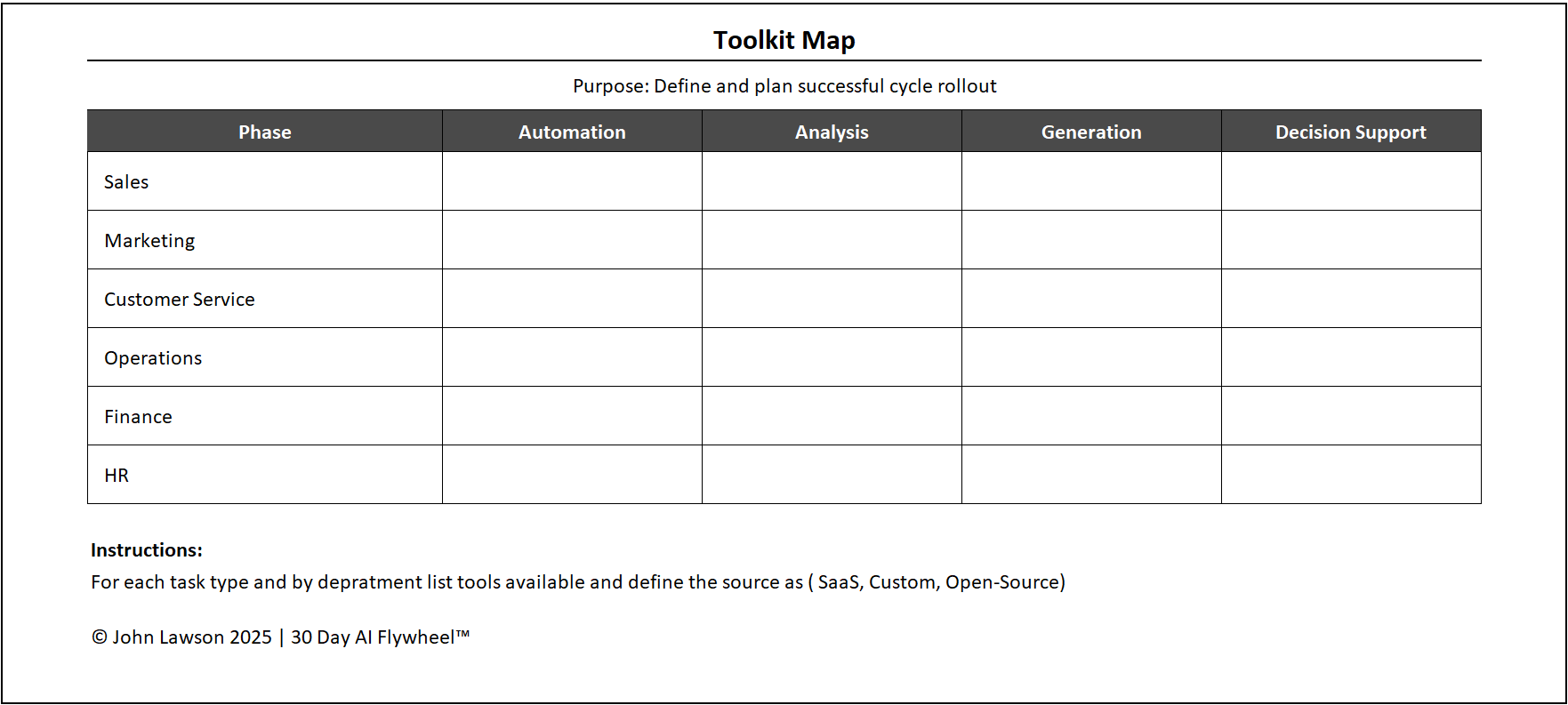
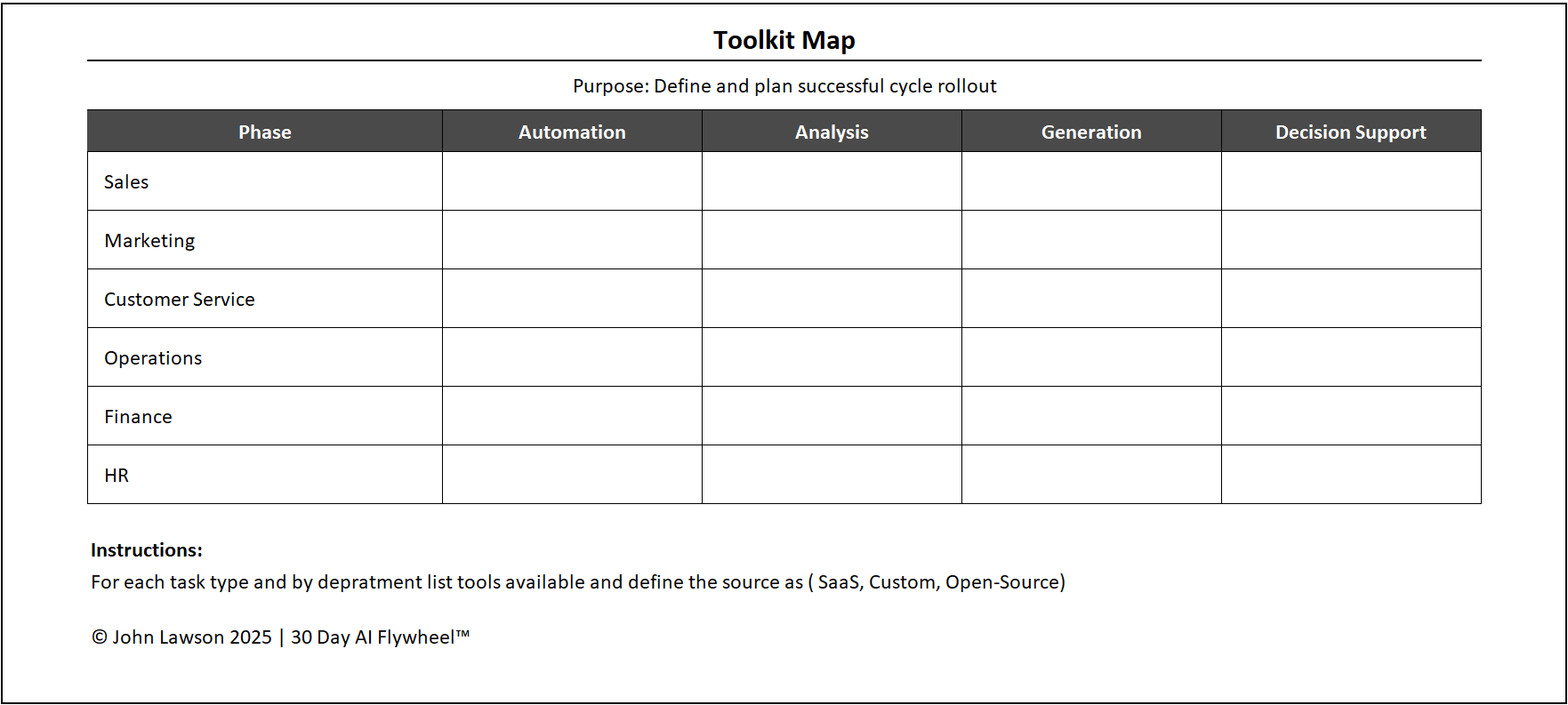
- The map is structured around key functions: Sales, Marketing, Service, Operations, Finance, HR.
- Within each function, tools are grouped by workflow type: automation, analysis, generation, decision support.
- Each tool is tagged as Open Source, Commercial SaaS, or Custom Build to simplify sourcing.
What the diagram shows
- A grid with functions on one axis and workflow types on the other.
- Example boxes:
- Sales × Automation → AI lead scoring
- Marketing × Generation → Ad copywriting
- Service × Analysis → Sentiment tracking
- Operations × Decision Support → Demand forecasting
- Within each box: space to list current tools and candidate tools for cycles.
Inside the file
- Toolkit Map — the editable grid with department × workflow boxes.
- Tools Catalog — table (Function, Workflow, Tool, Tag: OSS/SaaS/Custom, Owner, Status: In Use/Candidate, Notes).
- Legend & Tags — sourcing tags and colour keys to keep views consistent.
- Shortlist Helper — quick vendor comparison fields for upcoming cycles.
- Poster — one-page map for workshops and leadership decks.
Example
A retail company used the Toolkit Map and saw three tools running in Marketing but none in Customer Service. Their next cycle added an AI support assistant, balancing adoption and improving coverage.

Download the Excel file
File: toolkit-map.xlsx
How to use
- Download the map.
- If it opens in your browser, save it:
- Windows: press Ctrl + S or right-click & choose Save as.
- Mac: press Cmd + S or control-click & choose Save as.
- List your current tools in the Tools Catalog and place them on the grid.
- Tag each tool (Open Source / SaaS / Custom) and mark status (In Use / Candidate).
- Highlight 2–3 empty or under-served boxes to explore in the next cycles.
Action step
Print the Toolkit Map and fill it with your current tools. Highlight gaps and mark the top three boxes to explore for your next cycles.